

Getting started with Stock Charts
The first step is to set your search tool for your required markets - be it stock, commodities, currencies and indices. Next to the search box is a funnel icon, follow the link to your data settings.
[1] Search for a stock, index or currency pair and load a chart.
[2] Along the top is a list of icon menu options; tool-tips on each describe what the icons do but include; open, email, save, annotate, magnify, charts gallery, market call, full screen, chart options and help.

Stock Chart Tools
On the left – on rollover – is a slider bar showing the list of add-ins; indicators, compare stocks, trends/support/channels, submit a trading idea, and profiles. A small pin icon on the top-right can be used to lock the menu bar in place
[3] To add an indicator, drop-down the Indicator menu bar. Three options are available:
Technical Analysis
Chart Indicators
[i] Momentum
[ii] Volume
[iii] Trend
For each indicator the source data can be defined as open, high, low and closing price. Parameters of the indicator are defined and colour and line thickness can be changed or altered.
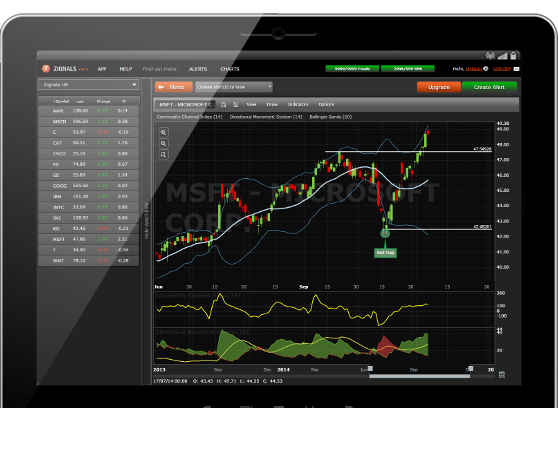
Completed indicators can then be added to the stock chart or forex chart. Indicators which are price overlays are directly added to the chart, indicators like Relative Strength, MACD, Stochastics etc. are added as tabbed menu options directly beneath the volume bars.
To remove an indicator; a price overlay can be hovered over with the mouse until a trashcan icon appears; a technical indicator can be removed by clicking the [X] in the tab.
How to remove technical indicators
from a stock chart
[4] Comparing a stock to another or an index requires selecting the asset to compare, and applying a colour. A warning will be issued as pre-existing overlays are removed before a comparison line chart is drawn. To remove a stock from the comparison, uncheck the box and/or hit [x]. The ‘Stop Compare' will remove all comparisons.
[5] Adding predefined support/resistance, trendline and channels requires defining a sensitivity variable with suggested values below 10 for short term conditions, 11-30 for intermediate time frames and above 31 for long term condition. Each set of conditions can be removed collectively from the drop down menu or individually on a rollover in the stock chart or forex chart.
[6] Trade Ideas are projections made as to how far up or down a stock, index, commodity or currency pair will go inside 1-, 6-, or 12-month period. A Trarding Idea call requires a Target and Stop price. Public Trading Ideas are available in the MarketPlace and may earn you a revenue share with Zignals. Submit a Trading Idea from the dropdown menu available in the left slider menu.
Submit a Trading Idea and earn reputation
and revenue projecting forward
price action for global stocks, currencies,
indices and commodites.
Enter a target and stop price, a level of conviction as to the probability of this happening and a summary pitch for the call. Calls are made for 1-month, 6-months or 12-month period. Calls are ranked by performance and an internal scoring system rewards target hits, but penalises cancelled calls before they expire (either by time, or by not reaching their target or stop price). Select ‘Call It' when you are happy with your projections. A call can be public (and therefore can be followed by
MarketPlace participants) or private (only available to you to view).
A call will appear as an icon on the chart; rolling over the icon will display the details of the call.
Adding annotations to a stock chart with a
call displayed
[7] Charts can be edited with annotations and highlight regions. Clicking the annotation icon will automatically pin-in the annotation tool.
Before an angle, region, line or text box is added it's necessary to select a colour first. Angled boxes can be dragged from three points; rolling over the area of the angled box will bring up an [x] to cancel. Horizontal region boxes can receive text by clicking on the note icon located bottom centre of the box; a region box is removed by clicking the [x] on rollover.
Rolling over a note box will bring up an [x] to cancel
When adding a line it is also necessary to set stroke thickness in addition to colour; lines can be adjusted from either end and rolling over a line brings up an [x] to cancel.
[8] The stock chart options icon allows you to choose between a candle or line chart, view your calls or alert, or use different time frames. The intraday or historical radio button can also be used to switch between time views.
Time can also be adjusted along the bottom of the stock chart using the slider.

Selecting intraday or historical data for a stock chart
Sections of the chart can also be viewed with the magnifier tool; particularly useful when looking at stock charts or forex charts going back a number of years.
[9] Stock charts, index charts, commodity charts and forex charts can be saved and viewed inside the chart gallery. Saving a chart will create a unique URL which can be shared in an email, forum or blog post or shortened for posting to twitter. Created stock charts can be public or private; to make a chart private simply uncheck the ‘Is Public' box.

Saving a stock chart
Charts can also be emailed with
supporting commentary. More
than
one
chart can be
attached at a
time to an email.

Email a stock chart to a client, friend or colleague
Saving a stock chart
setting
[10] Create a Profile from the drop-down menu to save your price overlays, technical indicators, time-frame, alert and call views. A number of different profiles can be created depending on whether you are following stock charts, index charts or forex charts.
[11] A help video is available by clicking the help icon.