

Real-Time Charts

Free Stock Charts

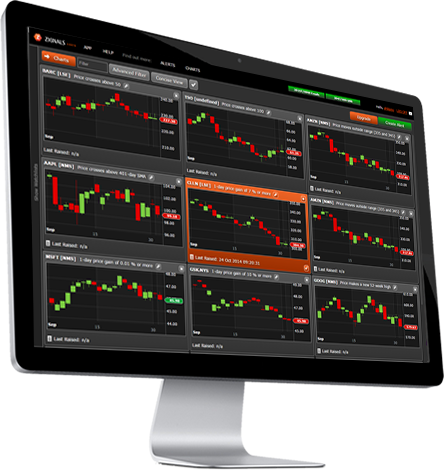
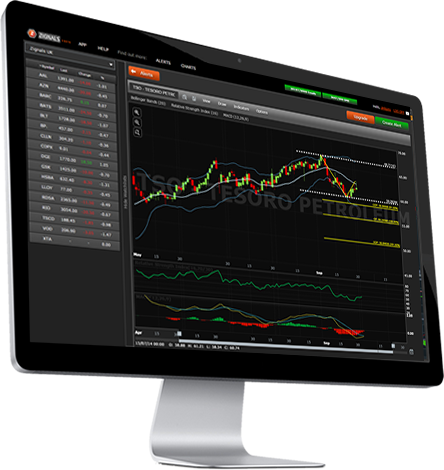
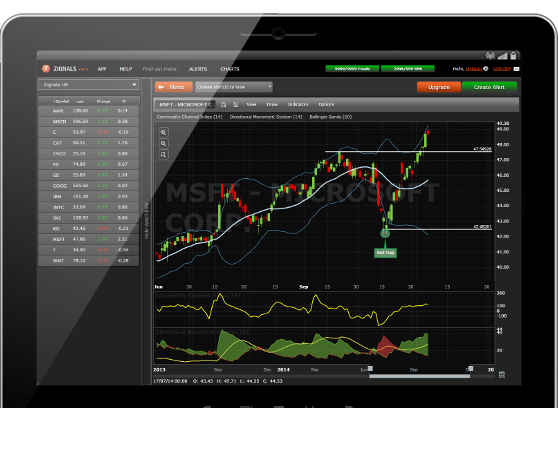
Create free charts for global stocks, indices and forex currency pairs, energy and precious metals, with intraday and end-of-day data, many with real-time pricing. Annotate, save and share market charts with clients, friends and colleagues. Share your trading ideas with the community and earn reputation and potential revenue too.

Notes & Tagging

Intraday Price Charts

Global Market Coverage

The Best Global Stocks Charts

Alerts to Call

 Share with
 the financial
 community

Price, Volume & Fundamentals

Personalised Trade Ideas

Frequently Asked Questions

1. I can't find my stock/ETF?
If the stock or ETF is listed in one of the exchanges we cover please drop us a request (Contact Us) and we will look to add the missing asset if available to us.
2. When will you cover Options, Mutual Funds, Bonds, Futures or non-energy/precious metal commodities?
We regularly review our data requirements based on demand and the markets we wish to expand into. If there is a market you would like to see covered send us a request for it
3. I can't interact with my chart in Full Screen mode?
Full Screen mode is a Silverlight feature which for security reasons does not support editable regions (e.g. changing indicator parameters or searching for another stock, index or currency pair).
4. Can I post a chart to Twitter?
Yes, all saved charts have a unique URL address, and any public chart created by you or another user can be shared. To get to this address the viewed chart has to be loaded in the charting application (you will see the navigation change); in the browser address bar is the unique address for the chart. The URL can also be found when you open or save a chart. Copy and paste the chart URL into a service like tinyurl.com or bit.ly to shrink it down and then use this in a twitter post.


5. I am a registered user but when I go to use one of your services my screen is blank. Why?
If you haven't been prompted to download the latest version of Silverlight (www.silverlight.net) you will need to do so before you can use our services. The download is currently available at http://silverlight.net/GetStarted/ If you have the correct version of Silverlight installed, a right-click of the blank space displays a pop-up box containing the word 'Silverlight' and clearing your cache fails to clear the problem then please drop us a line with your OS and browser information [6] How do I get access to Forex, ETF or other exchange data? By default not all exchanges are selected so as to not overwhelm new users. Next to the search bar is a funnel icon, click this and check the markets, exchanges and currency pairs you wish to follow. To get index data ensure both '$$$' and 'Indices' boxes are checked.
7. How do I change a stock chart theme?
The theme is changeable from chart options. Dashboard users are restricted to the carbon theme
8. How do I change the colour of a Zignals Stock Chart indicator?
To create a different colour scheme for an indicator it is necessary to delete the old one and recreate the indicator in the desired colour scheme.
9. How do I change a Zignals Stock Chart theme?
Two themes are currently available for users to try: Carbon and Blue. Note, any change in theme resets the page and will clear the existing workspace; remember to save your work before changing a theme.
10. How do I save my indicator and overlay settings on Zignals Stock Chart?
With the Profile drop down it is possible to save indicators, price overlays, time and sensitivity slider settings under a single profile name. The ability to view your calls and the price crosshair can also be set under this menu option. There is no limit in the number of profiles which can be saved. A check mark is used to set the default profile
11. How do I delete an annotation on Zignals Stock Chart?
All indicators, price overlays, text boxes and highlight regions can be deleted by hovering over the line or area and clicking [x] or the [trashcan icon].
12. Why can't I edit my Zignals Stock Chart in Full Screen Mode?
There are built in limitations to Silverlight which prevent certain functions, like editing, to be done in Full Screen mode. This may change with later releases of Silverlight. However, with Full Browser mode it is possible to maximize the workspace within the browser with full functionality.
13. How is Support and Resistance calculated?
The calculation looks for highs and lows for a number of days based on the value of the sensitivity slider. A Fibonacci ratio is applied to look for additional support and resistance beyond the initial setting. The further along the sensitivity slider (i.e. higher values) the more long term support and resistance areas will be found.
14. How are Trendlines calculated?
The sensitivity slider sets the time frame for selecting reaction highs and reaction lows. These form the basis of the calculated trendlines. Higher sensitivity values reflect longer term trends.
15. How are Channels calculated?
Channels are calculated in a manner similar to trendlines. A basic trendline is calculated based on the sensitivity setting. Then a parallel line is applied so the area contained within the channel accommodates at least 95% of price action.
16. How do I set Fast and Slow stochastic values?
To set a Fast stochastic of 14 days with a 3-day moving average enter for [%K Period] a value of 14, [%K slowing] a value of 1, and a [%D Periods] value of 3. To set a Slow stochastic of 14 days with a 3-day moving average enter for [%K Period] a value of 14, [%K slowing] a value of 3, and a [%D Periods] value of 3.
17. How do I save a Zignals Stock Chart?
In Chart Options you can save either a JPEG image or a shareable chart view which enables friends and colleagues to make their own edits to the chart (and save them under their own account). A link is also provided which can be emailed or posted to a blog or on twitter.
18. How do I view my Trading Ideas?
Within the Trading Ideas drop down menu is a Statistics tab. All of your existing Trade Ideas are listed and those of our members can be found under the Community tab. You can study any of the community Trade Ideas by using the stock filter tool. You can also view your Trade Ideas inside the Dashboard interface.
19. How many Trading Ideas can I offer on a stock?
The number of Trade Ideas per individual stock is restricted to one. A user can change a Trade Idea where one already exists. Resubmitting a Trade Idea effectively cancels the original projection and creates a new one. All Trade Ideas are scored and monitored by Zignals; early terminated Trade Ideas are given a penalty but Trade Ideas which reach their targets get a bonus added.
20. I can't see today's price data on the chart?
Live data for today can be viewed by dragging the slider as far right as possible. The data is 15-min delayed for European issues and real-time for US stocks. Forex data is 15-minute intraday (but 15-min delayed data).


Contact us if your question is not answered here