

Alerts

Free Stock Alerts

The best things in life are free and with Zignals Stock Alerts you get the information you need when you need it most, all at the low price of $0.00 per month.

Notes & Tagging

Notes &
Tagging

Global Market Coverage

Global Market Coverage

Alerts to Call

Trading Alert Ideas

Price, Volume & Fundamentals

Price, Volume
& Fundamentals

SMS & Email Delivery

SMS & Email Delivery

Let Zignals Commodity, FX and Stock Alerts Work For You

Your first step is easy, register [Registration link] with an email address to get access to Zignals stock alerts and more.

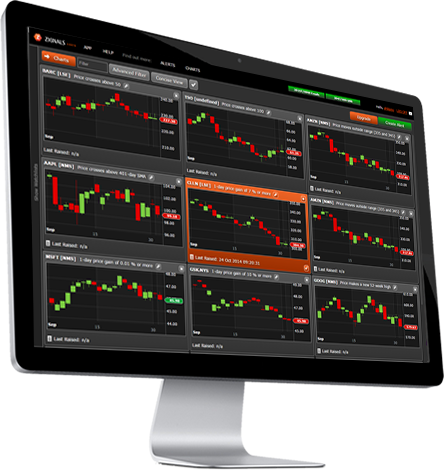
Zignals market alerts work within a simple unified workspace - to get started click "New Alert".


A popup window outlines the steps required to create a Zignals market alert.

  1. Select a stock, currency pair or choose from a stocklist / Fxlist


  2. To Edit a Stocklist /Fxlist it is first necessary to create one; click Edit Stocklists to get started


  3. Stocklists are first named (or renamed) and stocks or currency pairs added to the list using the search bar. Save the stocklist before exiting
  4. Once a stock or stocklist is selected next choose a Price or Volume market alert
  5. Certain stock alerts have parameters marked [x] and [y] which need to be configured


  6. In Advanced there is an option to enter a Tag; type in the name of the tag followed by the Enter key. Accepted tags will appear with a blue label.
  7. Configured market alerts are then saved
  8. In the main window an historical test of a market alert can be studied. Not all stock alerts support historical test and where unavailable the link will be greyed out. Market alert performance can be studied 1, 2 and 3-months out
  9. Market alerts can be edited in the main window
  10. Three market alert views are available; compact, concise and detailed


  11. Within each market alert is kept record of the FX / stock alert history including date, price and volume traded at the time of the market alert trigger


  12. The performance of the stock alert can be studied over one, two or three months out.

    This can be done from the Historical Test link; first select the market alert you wish to test before running the historical test


    The historical test displays the stock symbol, date of trigger, price and volume, performance over the chosen return (one, two or three months) and the final return.
  13. Triggered market alerts will appear in your window with an "Acknowledge" notification - click to remove


  14. You can also add a note to your market alerts which can be delivered as part of the email trigger (but not SMS).

    To add a note, highlight the required alert and select Add Note. Enter the required text and then save.

    A small note icon will appear next to an alert with a Note attached
  15. Add Tags to your market alerts to make organising easier. In the same way a Note is added to an alert so is a tag.

    Click the Tag icon and select from either one of the pre-selects or create your own tag. Tags are then selected using the Filter dropdown cloud menu. When creating a tag, ensure the Enter key is hit after the tag name is created for the tag to be accepted. Tags are then selected using the Filter dropdown cloud menu.


Want to find out more? Join us today