

Financial Tools

Personal Finance Tools

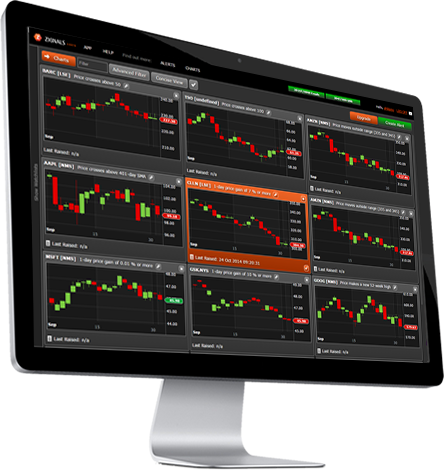
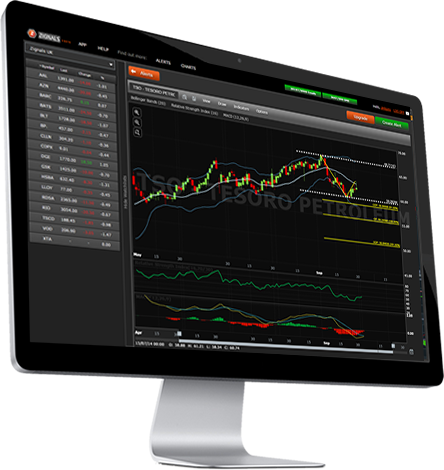
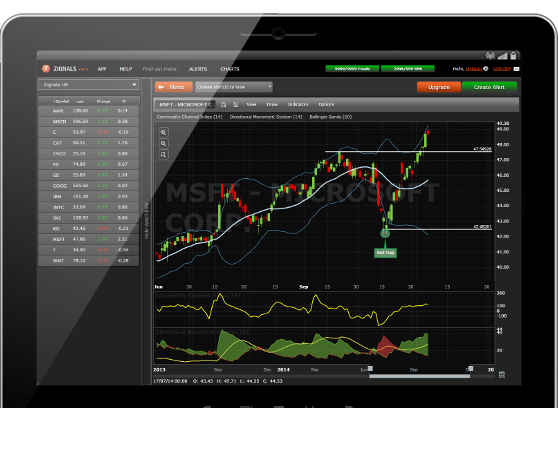
Manage your investment portfolios and find trading strategies and trading ideas suited to your risk profile; track your global stocks with alerts and charts, screen for your next investment opportunities. Track all of your holdings in a watchlist.

How to use Stock Charts

How to create a Stock Alert

Import a Portfolio

Screen for Stocks

Build a Watchlist

Getting Started with Zignals; How do I use Zignals?

How do I select the stocks I am interested in?

The stock filter icon inside the search box defines the range of stocks of interest; clicking on the icon brings in a check-box menu

When selecting the exchanges of interest you need to ensure all relevant boxes are selected.

Examples:
  1. If you are interested in US stocks you need to check the USA / NYS-NSM-ASE / Stocks / USD box
  2. If you are interested in Indian stocks you need to check the India / BSE / Stocks / INR check boxes
  3. If you are interested in indices you need to check Indices / $$$
  4. If you are looking for currency pairs check the appropriate currencies you wish to view; for EURUSD check EUR and USD.

How do I find a Trading Strategy?

Zignals offers trading strategies covering global stocks, forex, energy and precious metal commodities. Trading strategies are created by our users and are governed by mechanical triggers, ensuring full accountability and tracking.

There are two avenues for finding a trading strategy; via the MarketPortal or in the MarketPlace.

In the MarketPortal there is a widget listing the Top 20 Trading Strategies.

If you are interested in a particular strategy, the MarketPlace has an Advanced-Search Strategies option which allows you to select by performance, cost, exchange, sector or currency.

Advanced Search – Strategies works much like a screener. The output from the filters automatically updates as filter parameters are changed.

Whether you search for a trading strategy via the MarketPortal or MarketPlace you can subscribe to any strategy by simply clicking the [Subscribe] button.

Strategy signals are emailed after the close with target and stop hit signals emailed during market hours with confirmation signals at the close.

Further information on holdings and performance is available in the Portfolio Manager from the drop-down menu.

Your subscribed-to strategies are listed in Subscribed Trading Strategies widget of the MarketPortal


I am interested in stock picks or Trading Ideas, how can I find these?

Stock picks are individual Trading Ideas submitted by our users. You can follow the trading ideas of a particular user and receive email alerts as to when the target and stop prices are hit. Trading ideas are sometimes accompanied by a pitch and level of conviction on the part of the user as to whether the target price will be reached. As with Trading strategies there are a couple of ways of finding stock picks.

In the MarketPortal there is a Trading Ideas Widget; here you can search by stock to find individuals who may be interested in stocks from a given country or asset type.

In the MarketPlace you can search by user name or stock. An Advanced Search - Trading Ideas allows searches by Performance or Sector.

Click the [Follow] next to the user name to track the trading ideas of that user.

You will be notified by email of new trading ideas as well as alerts notifying you if the stop or target price for the trading ideas have been hit.


I have Trading Ideas of my own, how do I submit them?

Trading Ideas can be submitted in the charting application or directly via the MarketPortal.

To enter a Trading Idea in the MarketPortal, click [Offer a Trading Idea] in the Trading Ideas widget.

Enter a Target, Stop, timeframe of the Trading idea, a level of conviction as to how confident you are the target will be hit, and make a pitch as to why you think it will make the target.

Conviction ranks from (1) for low confidence to (5) for very confident.

When this is complete [Submit the Trading Idea].

Trading Ideas are available in the MarketPlace for others to follow and for you to potentially earn revenue; these will also appear on your charts if the option to view them is selected.


How do I use Stock Alerts?

How do I create a Stock Alert?

Stock Alerts are our fastest growing service. We offer a huge range of choices, but here is how you get started.

Open Stock Alerts (Tools) or My Alerts (MarketPortal).

Click [New].

Choose a stock, forex pair or commodity, or select from a stocklist.

Select an Alert Condition; Price and Volume alerts usually require one or two parameters. Fundamental - Informational Alerts are delivered whenever the relevant figure is released. Other Fundamental Alerts are delivered when the given parameter is true.

Looking to set an alert on a change in Analyst Rating? A value of 1.00 is a 'Buy', a value of 3.00 is a 'Hold', and a value of 5.00 is a 'Sell'. Set alerts for crosses of any value between 1 and 5, including decimal values (e.g. 2.50)

If you wish to create a number of alerts the easiest way to manage them is through assigning tags. In the Advanced section, enter a tag name and hit [Enter] - the tag name will show in blue. Add as many tags as you like, or delete by clicking the [x].


What do Notes do?

The Note feature allows you to comment on a particular Alert; this comment is delivered as part of the email when triggered.

To [Add Note] an Alert must first be selected.

Notes can be as long as they need to be and alerts with a note attached will show a yellow icon in the top information row of the alert.


How do I create a Stocklist?

In order to get to the Edit Stocklist option you first need to create a [New] Alert.

In the New Alert interface, check 'select stocklist'; this brings up the Manage Stock Lists editor.

Then create [New] or [Rename] an existing stocklist.

Add stocks from the stock search bar.

Stocklists have multiple uses across applications. In the Alerts application a stocklist can be used to form the basis of a group alert - allowing you to assign a single alert for up to 50 stocks.

Stocklists are built around stocks of the same currency.

Searching for a stock will add it to the list; click the [-] icon to remove it.

Stock lists are automatically saved, but can be renamed and deleted.


How do I create a Stock Alert on a Dynamic Stock List ?

How to create an Active Stock Screen / Fundamental Trading System?


Find more Help and FAQs here

How do I use Stock Charts?

How do I create a Chart?

How do I create a Chart profile?

If you are creating a large number of charts you can store the settings using our Profiles. Profiles are initially available on loading the application.

To create a profile, first create a chart with the appropriate indicators.

Then [Create a New Profile].

A New Profile window allows you to set the viewable options, including chart style, time frame and indicators which will be viewable. The sensitivity slider sets the starting look-back period (in days) in searching for support/resistance, channels and trends.

When you create your own alerts or offer trading ideas, you can also define which of these will be viewable on your charts.


How can I offer a Trading Idea?

In Stock Charts there are two avenues to creating a Trading Idea; via the horizontal menu bar or by the drop-down menu on the left.

Trading Ideas are easy to create.

Set a Target price for where you think the stock, forex pair or commodity will go. The Target price must be higher than the current price for a long position, or less than the current price for a short position.

Set a Stop price.

Give the Trading Idea a time frame from one month to up to a year.

Offer a level of conviction – do you think it has a strong chance, then select (5), if you are not so sure then select (1) or (2).

If you have an opinion you would like to share about the Trading Idea then you can write a brief pitch – this pitch is delivered as part of the Trading Idea to your followers.


Find more Help and FAQs here

How do I use the Stock Screener?

How do I create a Stock Screen?

First, create a [New] Screen. Then select from the screener filters the parameters you wish to scan for, options include: volume, valuations, profitability, price, margins, income statement, dividends, balance sheet and analyst recommendations.

After you have selected your filters and adjusted the filter parameters - save your screen.

Results are automatically updated as you add and change filters.

To create a stocklist from your results check the box next to 'Symbol' in the results panel; doing so pop-outs the Stocklist panel on the right.

In the Stocklist panel, create a [New] stocklist.

Now - in the Results panel, [Add to Stocklist] the checked stocks. It may be necessary to run through a number of pages of results to check and add all the results to a stocklist. The number of viewable stocks per page can be changed.

Stocklists can be used in Stock Alerts and the Trading System builder if they have 50 stocks or fewer in them.


How do I create an Active Stock Screen / Fundamental Trading System?

In Stock Screener you can create a screen which will run daily, update a stock list and notify you by email as to the changes to that screen. We call the products of these scans "Fundamental Systems" and can be created as follows:

Open a saved screen; the [Create Fundamental System] button will only be available for selection if a prior saved screen is opened or a new screen is saved.

Click the [Create Fundamental System] button and give the system a name; this will create a same-named stocklist on which the screen will act. The stocklist is viewable in the Stocklist Panel; to view, click on the Stocklist Panel bar on the right of the screen to slide out the stocklists.

An icon next to the stocklist name distinguishes dynamic stocklists (Fundamental Systems) from static stocklists. Dynamic stock lists can be turned into static stocklists by removing the Fundamental System marker next to the screen name; to do this click [Open] to get the screen menu and click [X] at the end of the screen name to switch off active stock screening from a screen filter.


Find more Help and FAQs here

How do I use the Trading System?

How do I create a Trading Strategy?

Please download our PDF outlining the process for creating a simple trading strategy.


How do I sell a Trading Strategy I've created?

To sell a trading strategy it is necessary to publish it.

Publishing is the last step, step 5 in building a trading strategy.

Publishing offers a summary of the strategy type, starting capital and exit conditions. At this stage the strategy can be given a simple description and the amount you wish to charge per month.

Once you are happy with these conditions the strategy is published and the signals will be run after the market close. A unique, read-only, portfolio is assigned and is available in the Portfolio Manager drop down menu.


Find more Help and FAQs here

How do I use Watchlists?

How do I create a Watchlist?

First click [New] and give your watchlist a name. This will open a blank watchlist.

To populate the watchlist, click [Add Symbol] at the bottom of the list to add global stocks, forex, precious metals and energy commodities. Use the [Remove] button to remove an item from the list.


How do I get the fundamentals on a stock?

In the Watchlist page, click the info icon icon to pop-up details of a stock's fundamentals, in addition to any charts, strategies or trading ideas created by Zignals members.


Find more Help and FAQs here

How do I use the Portfolio Manager?

Create my own multi-currency Portfolio?

How do I import a Portfolio?

Zignals supports the importing of personal portfolios. Before importing a file you should create a new portfolio, unless you wish to append an imported file to an existing portfolio.

The first step (step 1) is to ensure your portfolio is in a CSV format.

Step 2 assigns categories and actions to the relevant columns of the CSV file; it may be necessary to create an extra column in the CSV file to handle whether a trade is a buy/cover (negative value) or a sell/short (positive value). In the importer this column is referred to as the "Transaction Type".

The categories to be imported include

  1. (Stock) Symbol
  2. Transaction Date
  3. Date format (four formats to choose from)
  4. Price (purchased)
  5. Quantity (bought or shorted)
  6. Transaction Type (see above)
  7. Commission
  8. Comment
  9. Broker Information

You can skip past assigning columns for 7, 8 and 9 if necessary.

The next step (step 3) allows you to uncheck unrecognized entries from the importer or change values by clicking on the relevant boxes. It is possible to edit transactions in the portfolio manager after importing too.

The final [Next] to step 4 will only become active if the portfolio has no error and at least one complete information row is present. It is often easier to remove problem rows by ensuring the "Uncheck invalid entries" box is selected.


Find more Help and FAQs here


Contact us if your question is not answered here

Join us today and enjoy free stock alerts and FX alerts